> For the complete documentation index, see [llms.txt](https://docs.eazybackup.com/llms.txt). Markdown versions of documentation pages are available by appending `.md` to page URLs; this page is available as [Markdown](https://docs.eazybackup.com/eazybackup-white-label/create-a-white-label-tenant-branding-intake.md).
# Create a White-Label Tenant (Branding Intake)
* A tenant is a branded space with its own Fully Qualified Domain Name (for example, `abcd1234.obcbackup.com`).
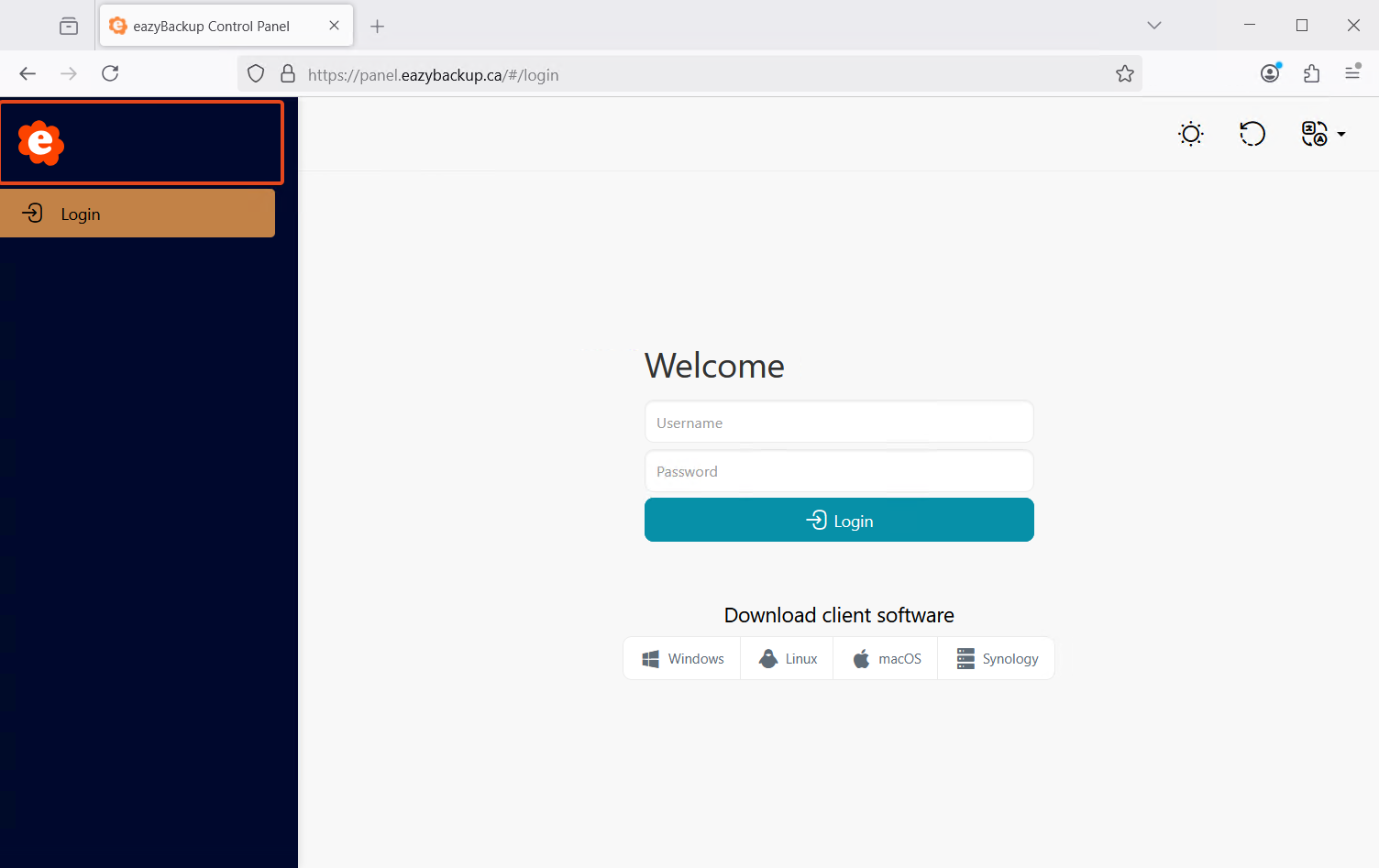
* Customers use the tenant hostname (or your custom subdomain) to log in to their **customer control panel** — this is not the MSP admin portal.
* You can attach your own **subdomain** (for example, `backup.acme.com`) later.
{% hint style="info" %}
“Use a **subdomain**, not the root domain. CNAME records are not permitted at the zone apex because apex must also host mandatory SOA and NS records.”
{% endhint %}
### Checklist
* Logo and header images in the sizes below.
* Decide on your brand colors (Header Color and Accent Color).
* Decide email mode: **Parent mail server** (easiest) or your **SMTP server** (full branding). If using your own domain, plan to set up SPF and DKIM.
* Optional: the subdomain you want to use (for example, `backup.acme.com`).
### **Backup Client Branding**
In this section you can brand the appearance of the desktop client, add an EULA, configure a custom help page and more.
The **Client Branding** section is for re-branding the desktop client. When you make changes to your branding, it is required to update the desktop clients for the changes to apply. It is possible to update the branding for multiple devices at once using the Bulk Update feature.
| Section | Field | Required | Accepted formats & size | Notes / Where it shows |
| ------------------------- | ----------------------------------------------------------------------------- | -----------------------: | -------------------------------------- | --------------------------------------------------------------------------------------------------- |
| **System Branding** | Control Panel Page Title | Yes | Text | Displayed on the tenant’s customer control panel. |
| | Custom Control Panel Domain | No | Text (hostname) | Defaults to hostname like `abcd1234.obcbackup.com`. You can later attach **your** subdomain. |
| | Header Color (Hex) | No | `#RRGGBB` | Replaces the colour in the Control Panel navbar. |
| | Accent Color (Hex) | No | `#RRGGBB` | Used for buttons/highlights. |
| | **Header Image** | Yes | JPG/PNG/SVG • **228×40 px** | Used in the control panel header and email reports. |
| | Tab icon (favicon) | Yes | **ICO only** | Upload your `.ico`. |
| **Backup Agent Branding** | Company Name | Yes | Text | Visible in the desktop client. |
| | Product Name | Yes | Text | Visible in the desktop client and download area. |
| | Help URL | No | `https://…` | Shown in client help menus. |
| | Icon (Windows) | Yes | **ICO/JPG/JPEG/GIF/PNG • 512×512 px** | Square image recommended. |
| | Icon (macOS) | Yes | **ICNS/JPG/JPEG/GIF/PNG • 512×512 px** | Square image recommended. |
| | Menu bar icon (macOS) | Yes | **ICNS/JPG/JPEG/GIF/PNG • 512×512 px** | Use simple/solid shapes for tiny sizes. |
| | **Logo image** | Yes | **JPG/JPEG/GIF/PNG/SVG • 100×32 px** | Small horizontal mark used by the app. |
| | **Tile image** | Yes | **PNG • 150×150 px** | Used where a square tile is shown. |
| | Tile Background (Hex) | No | `#RRGGBB` | Background behind the tile image. |
| | **App icon image** | Yes | **JPG/JPEG/GIF/PNG • 256×256 px** | General app icon. |
| **EULA** | Paste text or upload file | No | RTF/TXT/PDF | If both are provided, the file takes precedence. |
| **Email Reporting** | Use parent mail server | Toggle | — | Sends from the OBC domain with default branding. |
| | SMTP settings (From Name, From Email, server, port, user, password, security) | If not using parent mail | — | To send from **your** domain, enter your Simple Mail Transfer Protocol details and set up SPF/DKIM. |
### **Company name**
The backup client will refer to the Company name when making changes within the backup client.
### **Product name**
The Product name is what the backup client will be named (the shortcut will automatically change to this name). The software will also install in Windows to `"C:\Program Files\Product Name"`
### **Help URL**
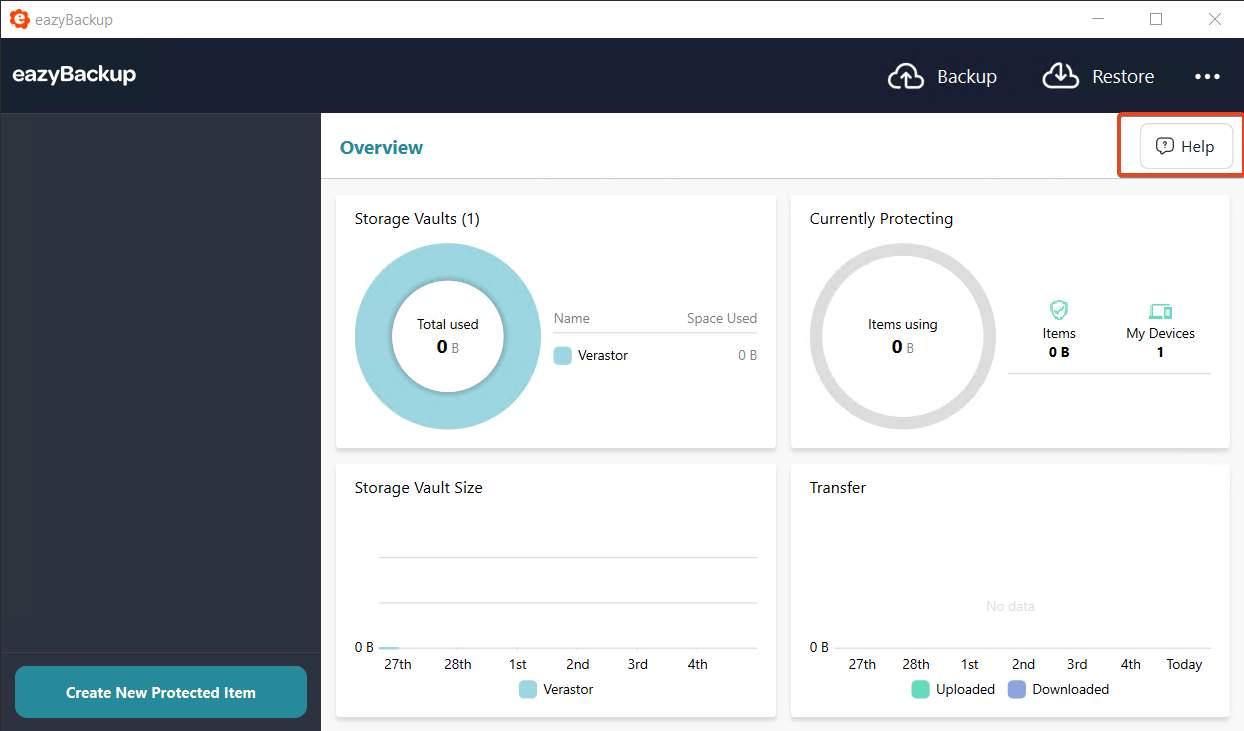
Setting the Help URL will add a Help tab on the backup client with your URL of choice (not required).
This feature aids in personalizing the backup client and in providing additional assistance to the end customer.
### EULA
Add your End User License Agreement during the installation process, displayed in the client software (not required).
### **Icon (Windows ) 512x512px**
You can set a custom icon used for the software on Windows.
File formats supported: `.ico,.jpg,.jpeg,.png`
For Windows, we recommend `*.ico` format. You can also supply the icon image file in a PNG or JPEG format. These formats will automatically be converted to the required ICO format.
The supplied image should have a square shape. **We recommend using a 512x512** image as this will preserve the most information when the image is scaled down to smaller sizes.
### Icon (**macOS) 512x512px**
You can set a custom icon used for the software on macOS.
File formats supported: `.icns,.jpg,.jpeg,.png`
For macOS, we recommend `*.icns` format. You can also supply the icon image file in a PNG or JPEG format. These formats will automatically be converted to the required ICNS format.
When using a png/jpg image, the supplied image should have a square shape.
The supplied image should have a square shape. **We recommend using a 512x512** image as this will preserve the most information when the image is scaled down to smaller sizes.
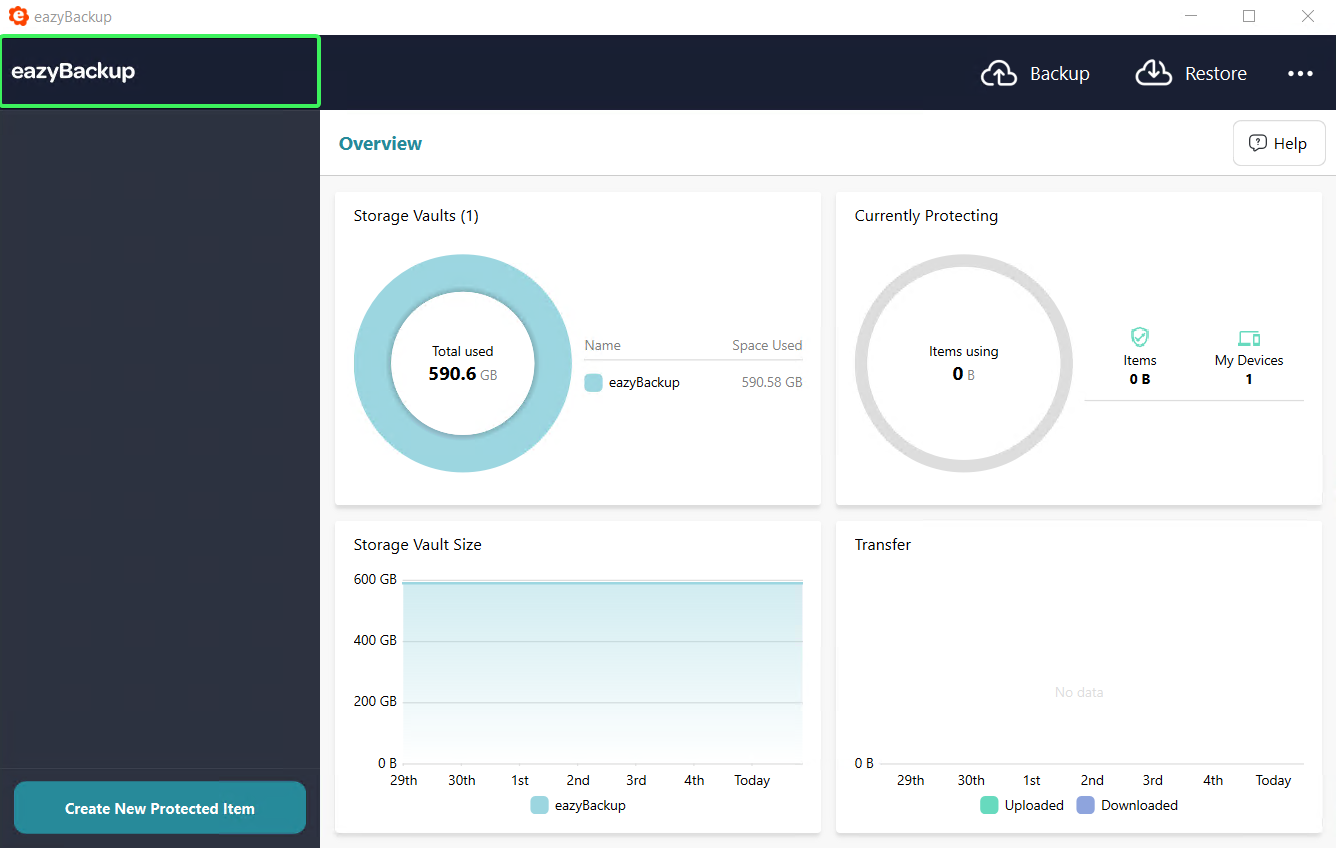
### **Logo image (100x32px)**
This image will be displayed in the upper-left corner of the software.
File formats supported: `.jpg,.jpeg,.gif,.png,.svg`
{% hint style="info" %}
We recommend supplying a `.svg` image format for the logo. Raster images such as `.png`, `.jpeg`, will not scale properly in windows and may appears blurred or pixelated.
{% endhint %}
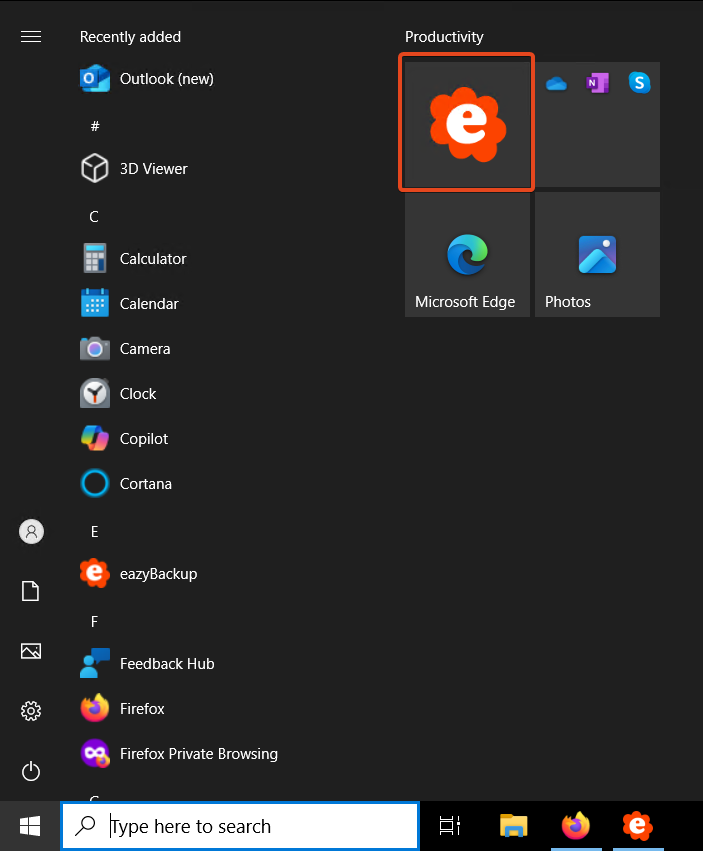
### **Tile image (150x150px)**
This image will be displayed in the Windows 10 start menu. The tile background can also be changed using hex format (e.g. #FFFFFF).
File formats supported: `.png`
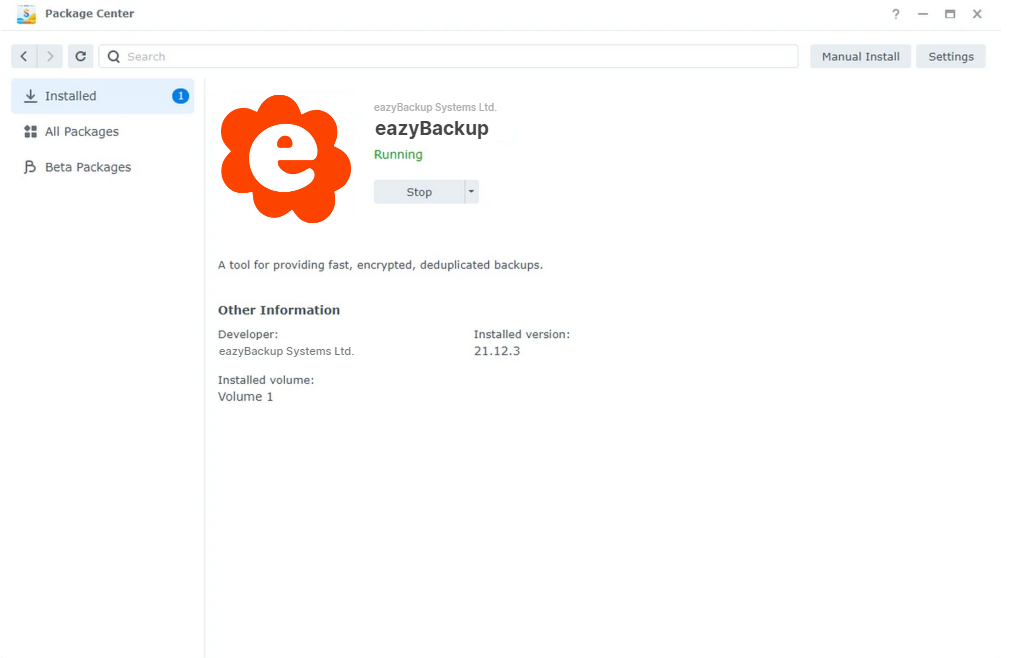
### **App icon image (256x256px)**
This image will be displayed as the icon in package managers, such as in Synology DSM's Package Centre. This image will be resized as appropriate based on the package manager relevant to each installer.
App icon image (256x256): `.jpg,.jpeg,.gif,.png`
{% hint style="warning" %}
### **Synology's icon cache**
{% endhint %}
Synology DSM has an icon cache in which it stores a copy of the configured icon for a package. When a new copy of an existing or previously-installed package is installed, Synology DSM will use the cached copy of the icon rather than the icon from the new copy of the package. This can cause it to appear as if changes to the "App icon image" branding setting have not been respected; it is actually caused by a stale icon being used by Synology DSM.
To clear the icon cache, follow these steps:
1. Uninstall the eazyBackup package
2. SSH into the Synology NAS
3. Clear the cache using `sudo rm -r /var/cache/pkglist.tmp/`
4. Reinstall the eazyBackup package
## Control Panel Branding
### **Header: Page Title**[****](https://docs.cometbackup.com/latest/guides/how-to-rebrand-comet-server/#header-page-title)
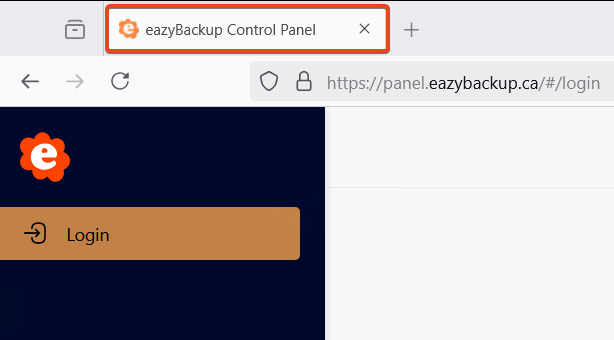
The Page Title removes the company name, eazyBackup, and replaces it with your company name. This is visible in the web interface header as well as on the browser tab.
### **Header Image (228x40px)**
You can supply a header image to be displayed in the upper left corner of the Control Panel login page.
The accepted file formats are: `.jpg,.jpeg,.gif,.png,.svg`
The header image is also used in your email reports if you enable the custom SMTP server.
### **Header colour**
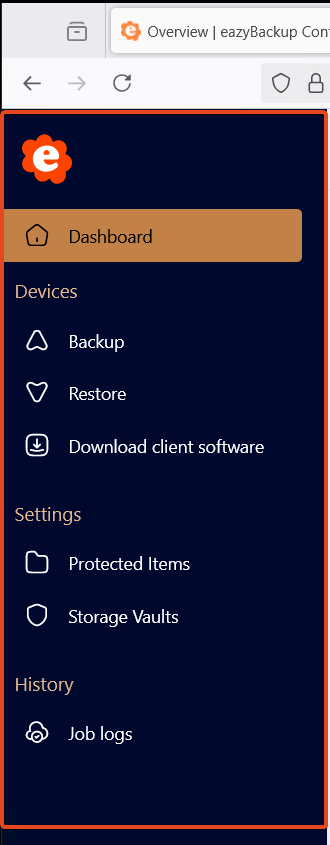
The Header colour replaces the colour in the left section (default is a dark blue colour #1B2C50).
### Accent colour
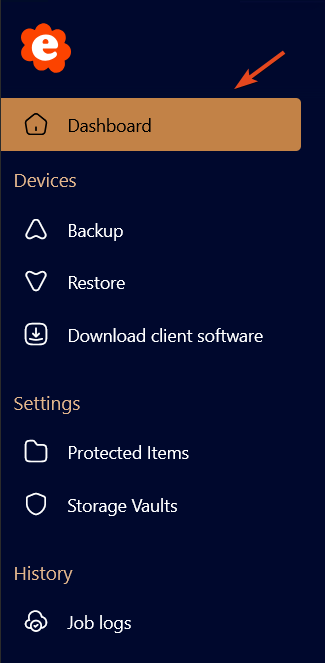
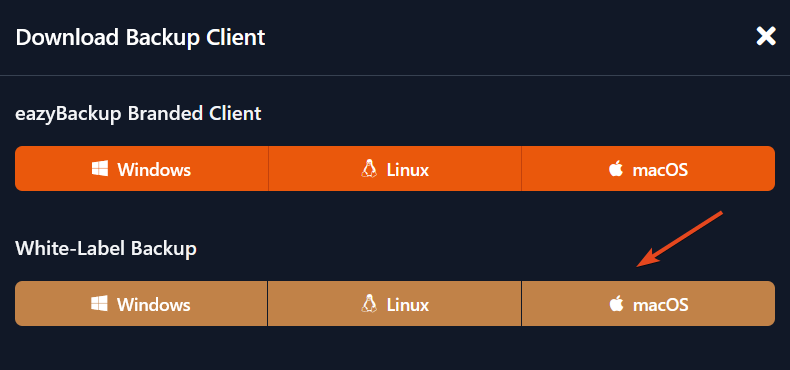
The Accent colour replaces the colour that highlights the active menu section in the web Control Panel and background colour for the client area download buttons.
### Tab icon
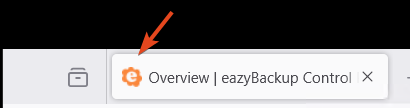
The browser tab icon of the web Control Panel can also be updated.
The accepted file format is: `.ico`
### Supported images
| Image | Supported Formats | Size |
| -------------------------------- | ---------------------------- | -------------- |
| **Header Image (control panel)** | JPG, JPEG, GIF, PNG, **SVG** | **228×40 px** |
| **Tab icon (favicon)** | **ICO** | — |
| **Logo image (app)** | JPG, JPEG, GIF, PNG, **SVG** | **100×32 px** |
| **Icon (Windows)** | ICO, JPG, JPEG, GIF, PNG | **512×512 px** |
| **Icon (macOS)** | ICNS, JPG, JPEG, GIF, PNG | **512×512 px** |
| **Menu bar icon (macOS)** | ICNS, JPG, JPEG, GIF, PNG | **512×512 px** |
| **Tile image** | **PNG** | **150×150 px** |
| **App icon image** | JPG, JPEG, GIF, PNG | **256×256 px** |
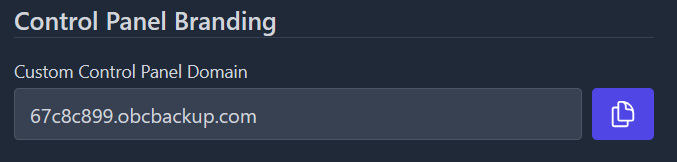
### Custom Control Panel Domain
To provide a private and branded login portal, we generate a unique subdomain for your account. This subdomain is randomly created and does not reveal your company’s identity.
`67c8c899.obcbackup.com` *(Example)*
This URL is your dedicated Control Panel URL. To access it using your own domain, you need to create a **CNAME record** in your DNS settings. This will allow your branded Control Panel to be accessed using your own domain.
**Steps to Configure Your CNAME Record:**
1. **Log in to Your Domain Registrar**\
Access the DNS management settings for your domain.
2. **Create a New CNAME Record**
* **Host:** A subdomain of your choice, such as *`backup.yourdomain.com`)*
* **Type:** CNAME
* **Value (Points to):** `mysubdomain.obcbackup.com`
* **TTL:** Leave as default or set to 3600 (1 hour)
3. **Save the Changes**\
After saving, it may take some time for the changes to propagate.
**Confirming Your Setup**
Once the CNAME record is added, you’ll be able to access your Control Panel using your custom domain. If you experience any issues, please allow up to 24 hours for DNS propagation or contact support for assistance.
***
[eazyBackup](https://eazybackup.com)