> For the complete documentation index, see [llms.txt](https://docs.eazybackup.com/llms.txt). Markdown versions of documentation pages are available by appending `.md` to page URLs; this page is available as [Markdown](https://docs.eazybackup.com/documentation/how-to-set-a-storage-vault-quota.md).
# How to Set a Storage Vault Quota
Setting a storage quota allows you to control storage growth and keep your billing predictable.
When a vault reaches its quota limit, **backups will stop automatically** until space is freed or the quota is increased.
### Step 1 — Open the Vault Management Page
From the **Client Area Dashboard**:
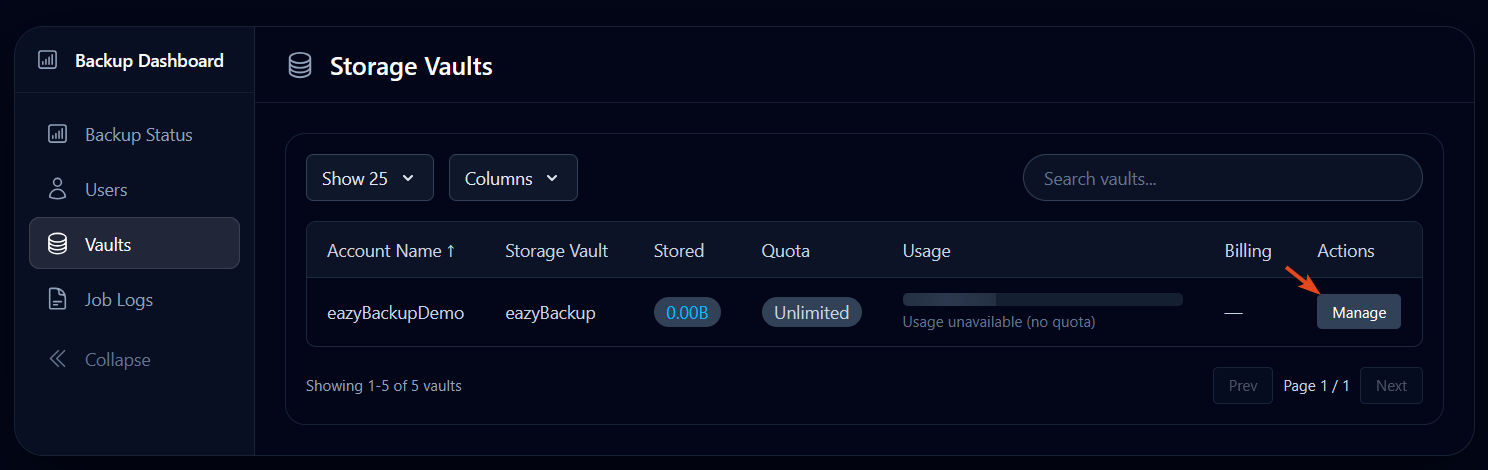
1. Navigate to **Backup Dashboard**
2. Click **Vaults** in the left menu
3. Find the vault you want to edit
4. Click **Manage**
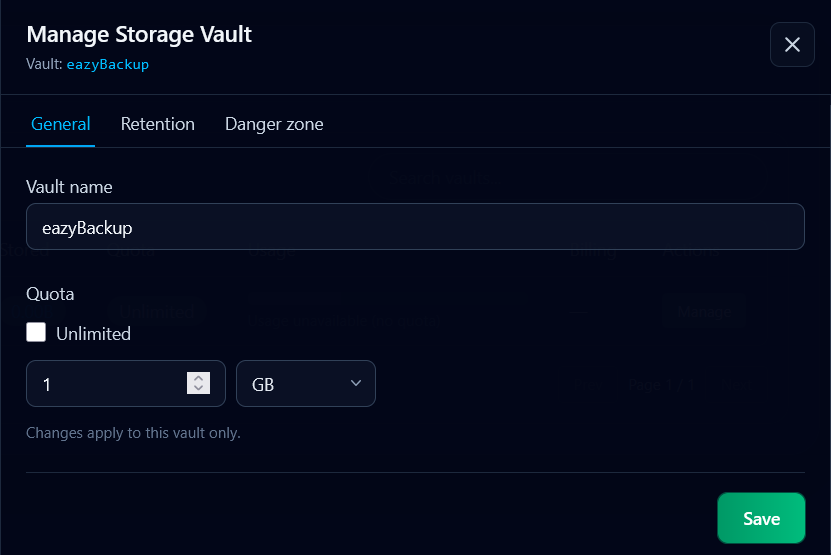
This will open the **Manage Storage Vault** window.
### Step 2 — Configure the Quota
Inside the **General** tab:
1. Locate the **Quota** section
2. **Uncheck the “Unlimited” option**
3. Enter the desired storage limit
4. Select the unit (GB, TB, etc.)
For example:\
`500 GB` will limit the vault to 500 gigabytes of storage.
### Step 3 — Save Your Changes
Click **Save** to apply the new quota.
Your vault will now enforce the configured storage limit.
### What Happens When the Quota Is Reached?
When the vault reaches its quota:
* New backup data **cannot be written**
* Backup jobs will **pause or fail until space is available**
* This prevents the vault from using more storage than expected
To continue backups, you can either:
* Increase the quota, or
* Use the restore menu to delete older backup data to free up space